Two sites, one range: telling networks apart
Note
Captured against TracePcap v0.2.0-341 (dev, 14 November 2026). TracePcap changes
quickly, so this walkthrough is a point-in-time record. Which network each address belongs to,
and the evidence for it, are stable across versions; screenshots and UI details reflect that
build, and a later one may differ. Re-verify against the current build before quoting a figure.
Private address ranges get reused. Two offices can both run 192.168.1.0/24 with a router at
192.168.1.1, and two VLANs can share a range behind different gateways. A capture from a trunk
port, or two sites’ captures merged for one investigation, then holds both networks at once.
192.168.1.10 at one site is a different machine from 192.168.1.10 at the other, but by
address alone they’re one host.
This walkthrough asks: given only the capture, can TracePcap tell how many networks there are, and which machine belongs to which?
The capture
two_sites_overlap.pcap (from sample-files/gen_overlapping_sites.py):
HQ |
Branch |
|
|---|---|---|
Range |
|
|
Router and DHCP server |
|
|
Domain (DHCP option 15) |
|
|
Lease time |
1 day |
1 hour |
VLAN |
10 |
20 |
DHCP clients |
|
|
So .1 and .10–.13 are each used by two different machines.
two_sites_overlap_untagged.pcap is the same traffic without VLAN tags, as when two sites’
captures are merged. It’s the harder case: nothing on the wire says “site”, so the networks have to
be told apart by what each DHCP server handed out.
What an address-keyed view gets wrong
Before TracePcap told networks apart, this capture came out as one network: 192.168.1.13
appeared with HQ’s MAC but Branch’s hostname BR-CAMERA. 192.168.1.10 was read as one
address passing from an HQ laptop to a Branch till, though both held it all along. Nothing warned
that two networks were mixed.
What TracePcap shows
Upload the capture. The Overview shows, under the capture summary:
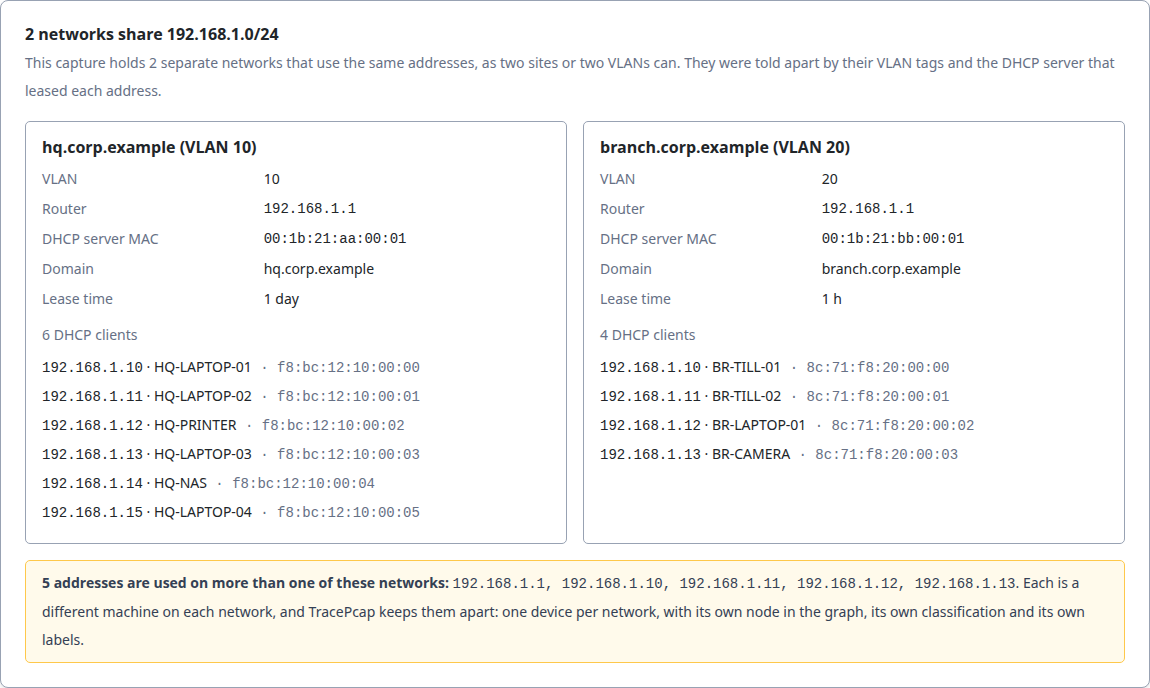
Two networks on 192.168.1.0/24, each with what identifies it and the clients it leased to,
and the five addresses used on both.
How it told them apart. Each DHCP lease records the network that handed it out: the VLAN tag on the server’s reply, the server’s MAC, and the router, domain, lease time and mask it gave. Leases are grouped per VLAN, or with no VLAN, per DHCP server MAC. Upload the untagged capture and the result is the same two networks, told apart by their servers’ MACs, domains and lease times alone.
Each shared address is one device per network. Open Network Visualization: every address used on both sites is two nodes, named by each machine’s own hostname.
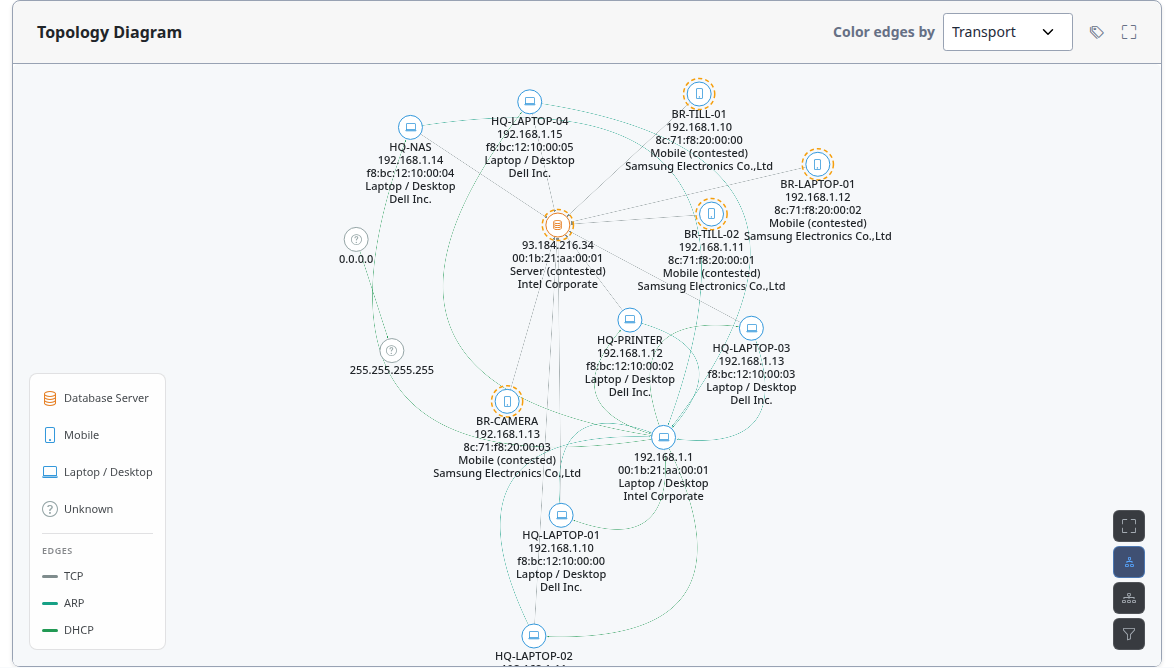
HQ-LAPTOP-01 (Dell, Laptop / Desktop) and BR-TILL-01 (Samsung, Mobile) are both
192.168.1.10, and are two nodes. So are .11–.13.
TracePcap knows which conversation was whose from the MAC on each side: the machine’s own, or for traffic from outside, the site’s router’s. It knows both per network from the DHCP leases. Each machine is then classified from its own network’s traffic.
Click BR-TILL-01:
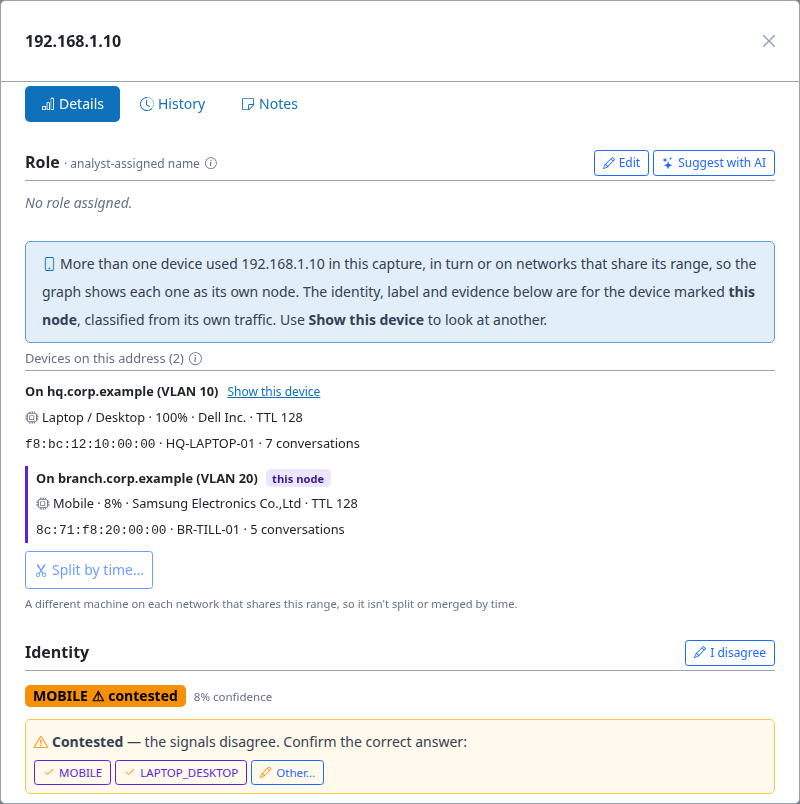
192.168.1.10 on each network, the Branch till marked this node. The Identity below is
the till’s own; a label set on it stays on the till and doesn’t touch HQ’s laptop.
Note
The tills classify weakly (Mobile, low confidence): the synthetic capture gives them little
besides a Samsung MAC. Branch’s router, also 192.168.1.1, has no node of its own here: its
DHCP and ARP exchanges have exactly the same addresses and ports as HQ’s router’s, so they are
one conversation to TracePcap (see the feature page’s Limits).
In Monitor, each site’s subnet gets its own label. Add the capture to a monitored network
and detect subnets (Subnet Definitions → Scan All Snapshots). The block both sites use is
offered once per site, each counting its own machines: 192.168.1.8/29 on HQ (6 hosts) and on
Branch (4). Save each with its own label:
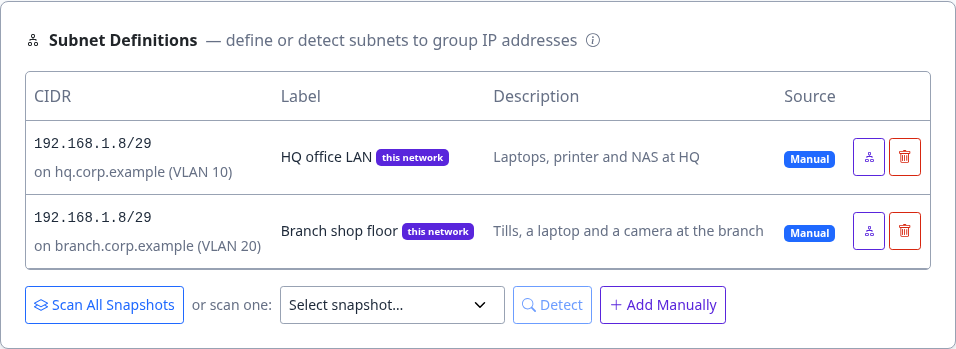
One CIDR, two subnets: “HQ office LAN” and “Branch shop floor”. Each has its own staleness baseline, counting only its own site’s machines and conversations.
Details: Networks Sharing a Range.
Reproducing it
python3 sample-files/gen_overlapping_sites.py # two_sites_overlap.pcap and the untagged one
Upload either capture and open its Overview.