Devices on a DHCP network: “Who was 10.0.0.50?”
Note
Captured against TracePcap v0.2.0-338 (dev, 14 November 2026). TracePcap changes
quickly, so this walkthrough is a point-in-time record. Which device held which address, and the
evidence for it, are stable across versions; screenshots, confidence figures and UI details
reflect that build, and a later one may differ. Re-verify against the current build before
quoting a specific figure.
On networks that hand out addresses by DHCP, an IP address is not a device. A laptop leaves, its
lease ends, and the next phone to join gets the same address. Phones also make up their own MAC
address and can change it. This walkthrough shows how TracePcap works out which device did
something, using two synthetic captures from sample-files/ (see Sample Files).
Part 1: one address, two devices
The capture: dhcp_address_reuse.pcap, office Wi-Fi from 10:00 to 12:00.
Time |
What happens |
|---|---|
10:00 |
Alice’s Dell laptop is leased |
10:59 |
The laptop releases the address and leaves. |
11:00 |
A visitor’s Samsung phone is leased the same |
11:05 |
Alice’s laptop comes back and gets a new address, |
11:32 |
The phone starts beaconing to |
The question an analyst gets: the beacon came from 10.0.0.50. Whose machine is it? By address alone, the answer is “LAPTOP-ALICE”: that’s the name the address had first, and an address-keyed tool blames Alice.
What TracePcap shows. Upload the capture and open Network Visualization. 10.0.0.50 is
two nodes, one per device, each classified from its own traffic:
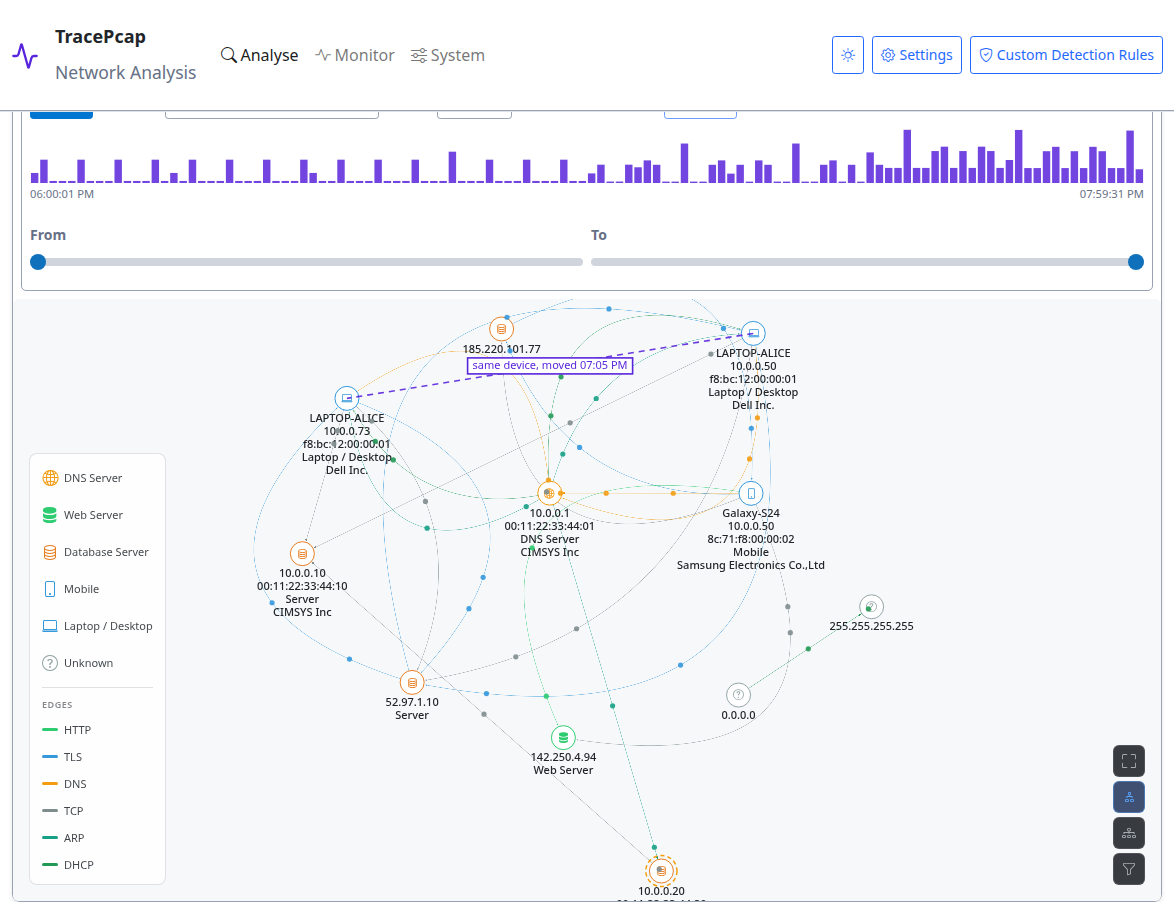
LAPTOP-ALICE (Laptop / Desktop, Dell, TTL 128) and Galaxy-S24 (Mobile, Samsung, TTL 64)
both on 10.0.0.50. The beacon’s edges, to 185.220.101.77, are on the phone. The dashed
line joins the laptop’s two nodes: it moved to 10.0.0.73 at 11:05.
Each conversation goes to the device that held the address when it started, so the beacon lands on the phone and Alice’s laptop is clean.
Watch it happen. The time axis along the bottom of the graph picks a window of the capture, and dots move along the conversations active in it (see Network Traffic Over Time). Click early in the chart, or press Play:
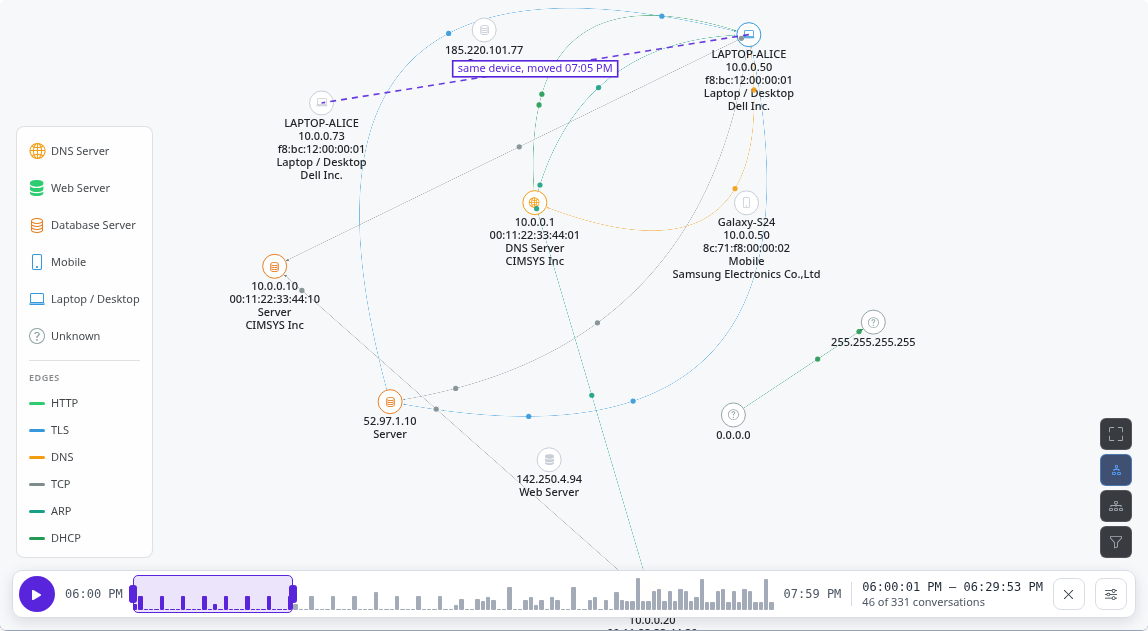
Early on, only the laptop holds 10.0.0.50: its mail and file-share traffic is drawn, and the
phone and 185.220.101.77 are greyed out.
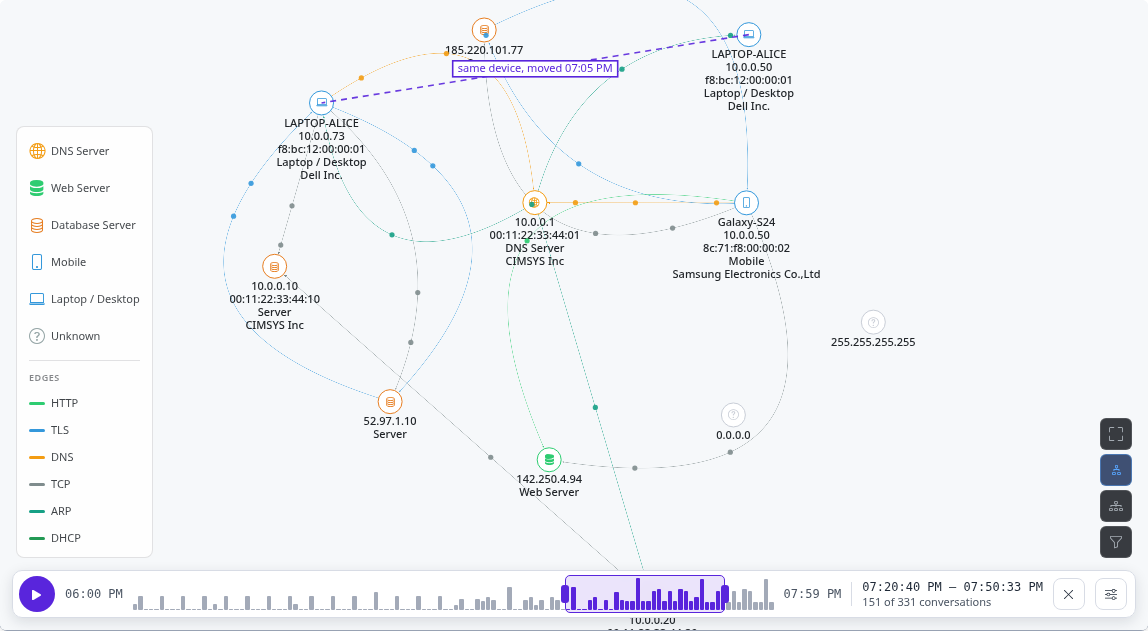
Late in the capture the phone holds 10.0.0.50 and its beaconing to 185.220.101.77 shows
up; Alice’s laptop is back on 10.0.0.73.
The laptop moved, too. When Alice came back she got 10.0.0.73. Same MAC, new DHCP lease:
TracePcap links the two nodes as one device, and the new address’s details say where it came from
(see Devices That Move to Another Address):
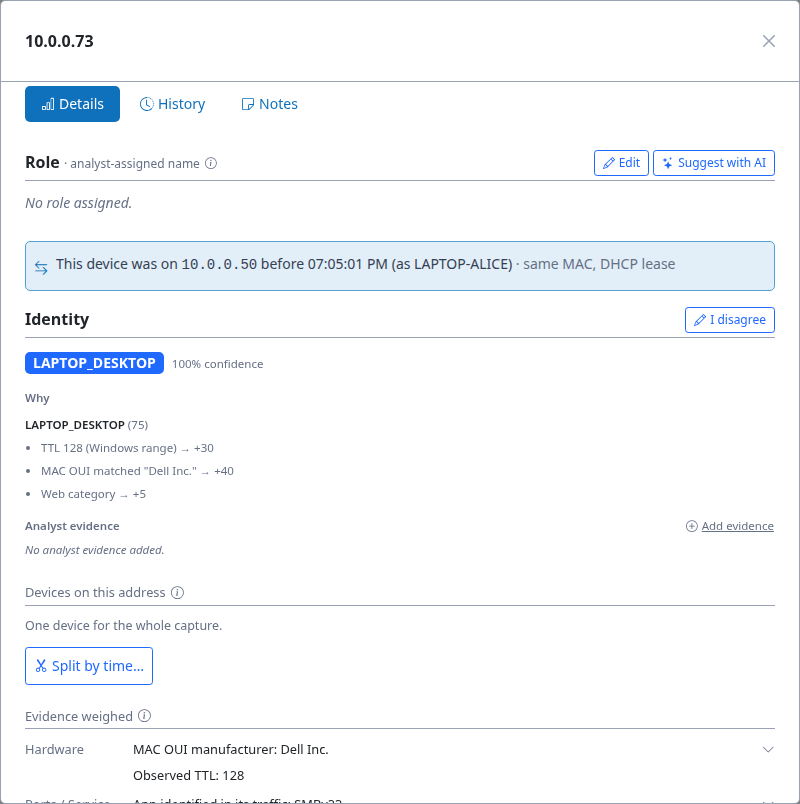
10.0.0.73 is Alice’s laptop, back on a new lease.
Why TracePcap split it. Click the phone’s node. Under Devices on this address:
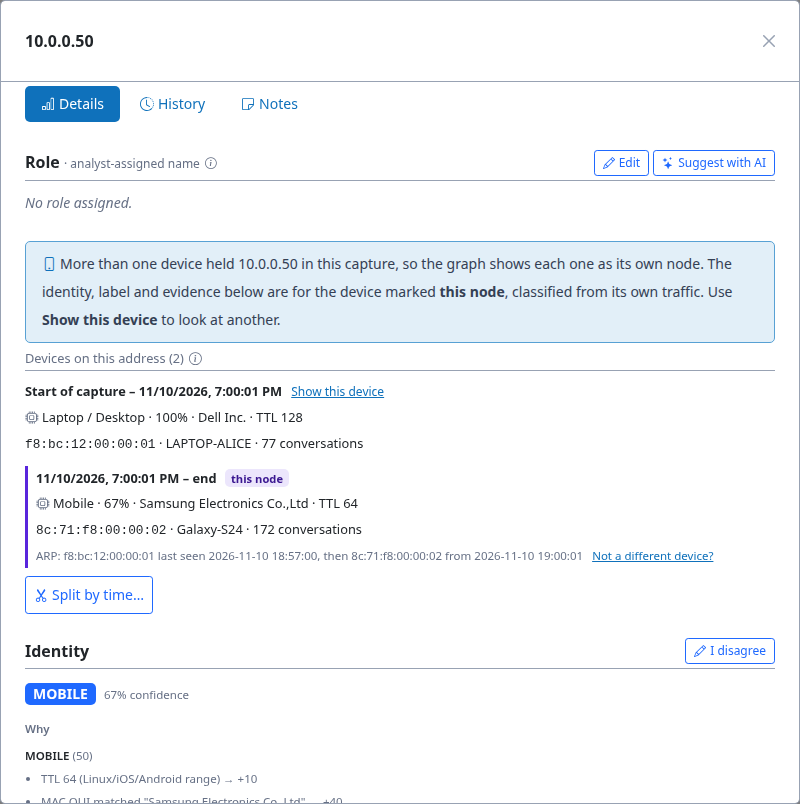
Two devices, each with its own verdict (Mobile · 67% · Samsung · TTL 64 for the phone). The
change is backed by evidence: ARP: f8:bc:12:… last seen 18:57, then 8c:71:f8:… from 19:00.
An address is split only when a different MAC takes it over (ARP or DHCP). A TTL or hostname change alone isn’t enough: one machine rebooting into another OS looks the same.
The Identity, label, role and evidence below the list are this device’s. Label the phone “Visitor phone, suspicious” and the laptop doesn’t get it.
If the split is wrong (a phone rotating its MAC), Not a different device? merges it back. If a split is missing (cloned VMs with one MAC), Split by time… adds one. Both are audited and can be undone.
Details: Devices on an Address.
Part 2: the same phone, a different MAC
The captures: private_mac_week1.pcap and private_mac_week2.pcap, two weekly snapshots of
staff Wi-Fi, added in order to one monitored network (“Staff Wi-Fi”).
iPhones (iOS 14+) and Android phones (10+) use a private MAC per Wi-Fi network by default, and
newer versions can change it. Between the weeks, Bob’s iPhone did: 3a:1f:9c:… in week 1,
7e:02:41:… in week 2. Carol’s Pixel kept its private MAC.
What TracePcap shows. On the network’s page, open Devices:
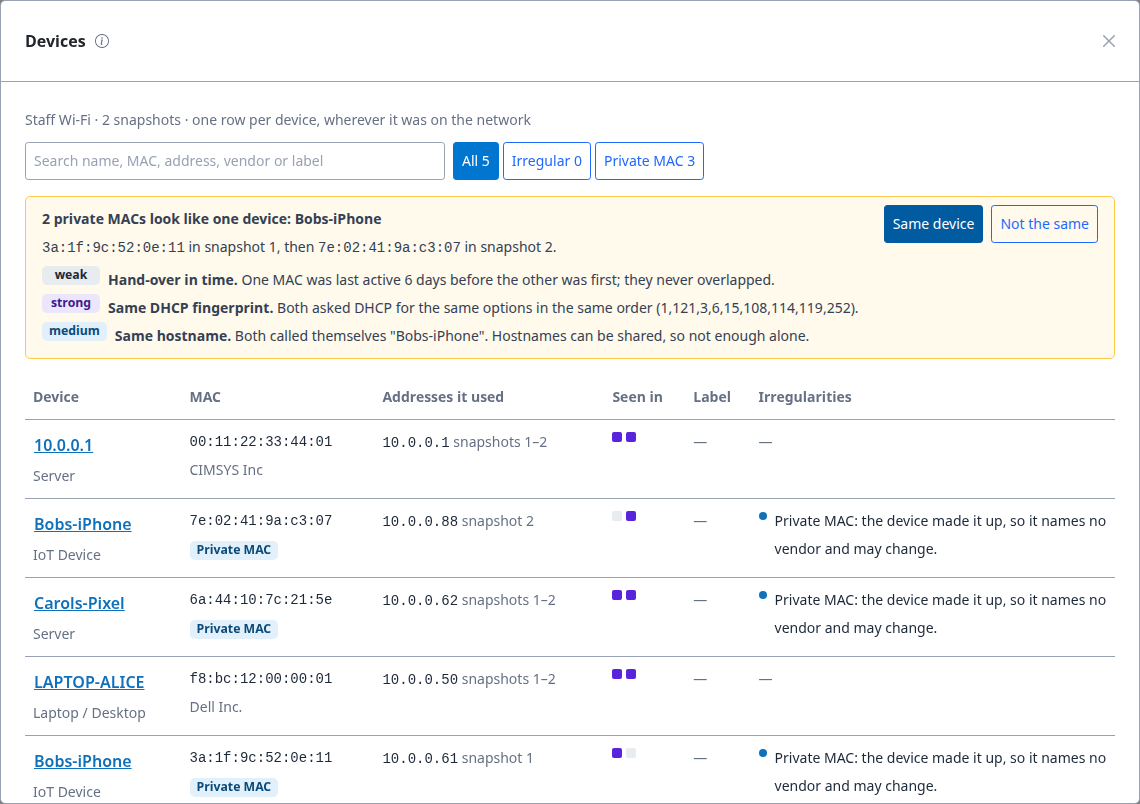
One row per MAC across both snapshots. At the top, a suggestion: the two private MACs look like one device.
The suggestion grades its evidence:
Strong: the same DHCP fingerprint, the options asked for in the same order. It names the OS and often the model, and stays the same when the MAC changes.
Medium: the same hostname,
Bobs-iPhone. Hostnames can be shared, so not enough alone.Weak: the hand-over in time. One MAC stopped about 6 days before the other began, and they never overlapped.
Carol’s Pixel is not suggested: its DHCP fingerprint differs, and it was active at the same time as Bob’s second MAC. Two devices active at once can’t be one.
Nothing is linked automatically. Same device asks for a reason, then shows the two MACs as one device, with both addresses and both snapshots:
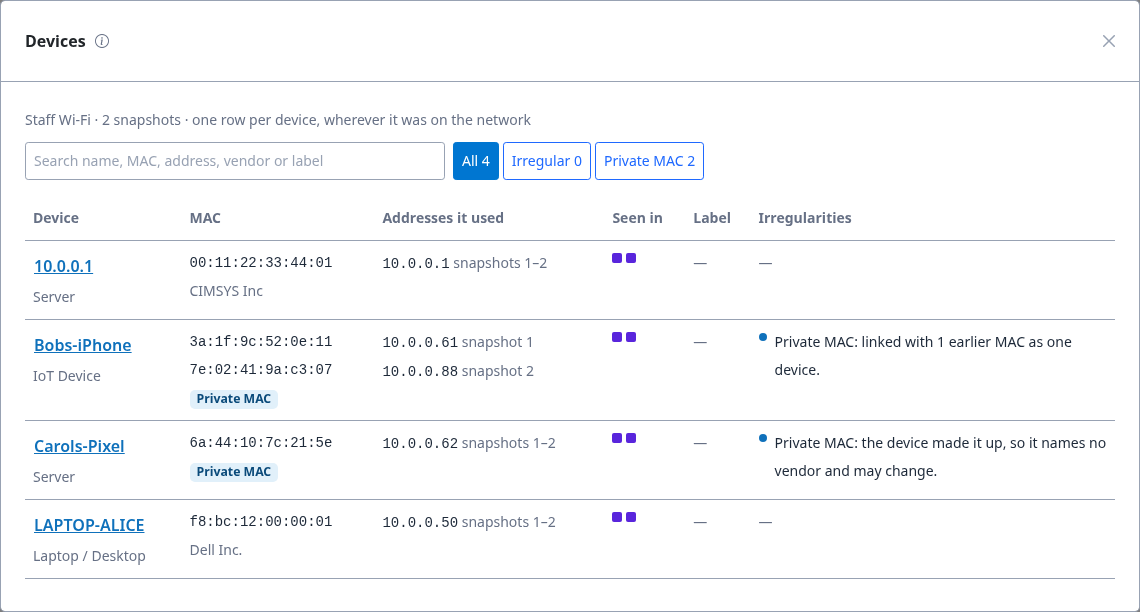
Bobs-iPhone is one device across both snapshots. The link is audited and can be undone from
the device’s details.
Note
Both phones are classified weakly (“IoT Device”, “Server”). With a private MAC the classifier loses the vendor, its strongest clue, and these synthetic captures carry little else. On real traffic, TLS fingerprints (from nDPI) and app traffic add evidence.
The Devices list also flags MACs that may not stand for one machine: duplicate MACs (one MAC answering as two operating systems at once), virtual machine and container MACs. Details: Devices Across Snapshots.
Reproducing it
python3 sample-files/gen_dhcp_reuse.py            # dhcp_address_reuse.pcap
python3 sample-files/gen_private_mac_rotation.py  # private_mac_week1.pcap, private_mac_week2.pcap
Upload
dhcp_address_reuse.pcapand open Network Visualization.Upload the two weekly captures one after the other. On Monitor, create a network and add week 1, then week 2, as snapshots. Open Devices.